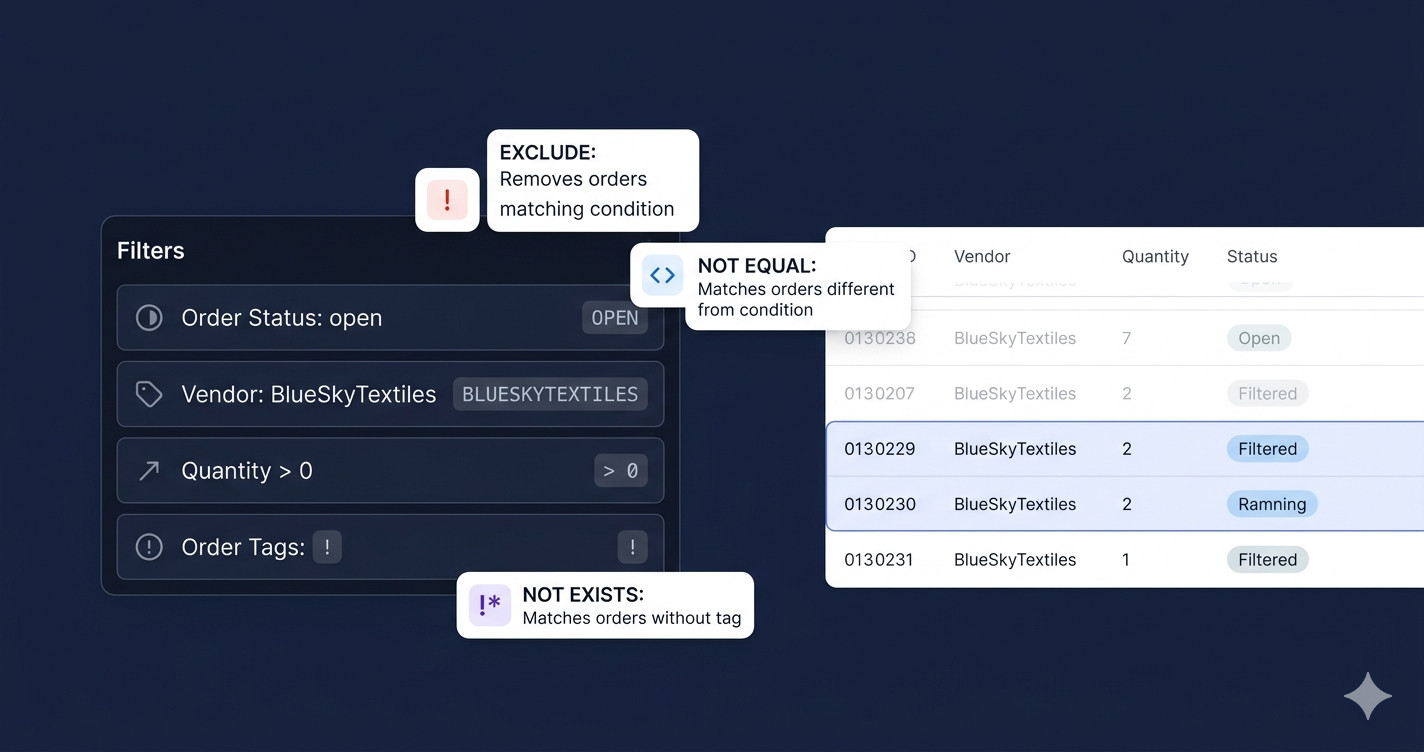
Export OrderPro gives you two layers of filtering that Shopify's built-in export cannot match: fast native API filters that keep reports quick, and powerful post-processing filters that let you slice data by any field — vendor, tag, SKU, quantity, custom properties — using a handful of expressive operators. The result is surgical precision over exactly which orders and order lines land in your report.
What Shopify's built-in filters can and can't do
Shopify's built-in export supports three filter criteria — date range, financial status, and fulfillment status — and nothing beyond that. You cannot filter by vendor, SKU, product tag, order property, or line-item quantity. You cannot exclude specific values, require a field to be non-empty, or build logic that spans both order-level and line-item-level attributes in the same export. The most common reason merchants install Export OrderPro is exactly this gap: Shopify's native filters cover the basics, but stop short the moment a store needs vendor-specific, tag-based, or quantity-filtered reports for suppliers, accountants, or fulfilment workflows.
Export OrderPro solves this by layering its own filter engine on top of the Shopify API, giving you fine-grained control without ever leaving Shopify Admin. For a full feature comparison, see Shopify's Built-In Order Export vs. Export OrderPro.
Two kinds of filters: native and post-processing
Export OrderPro uses two filter layers: native filters that run at the Shopify API level before any data is fetched, and post-processing filters applied afterwards that can target any field on an order or line item — vendor, SKU, tags, quantity, custom properties, and more.
Native filters — fast, API-level
There are three native filters in Export OrderPro:
- Order Status —
open,closed, orany - Financial Status —
paid,pending,refunded, etc. - Fulfillment Status —
unfulfilled,fulfilled,partial, etc.
Always use native filters first wherever possible. They drastically reduce the number of orders fetched from the API, which makes every report faster and reduces processing time on large stores.
Post-processing filters — precise, field-level
Post-processing filters are applied after the Shopify API has returned its results. They can match against any field on an order or its line items — product type, vendor, SKU, tags, order properties, quantities, and more. Multiple values entered for the same filter work as OR logic: each extra value adds more data to the report rather than narrowing it down.
Essential filter combinations every merchant should know
Two filter conditions belong in almost every operational report preset: Order Status: Open, which excludes archived orders at the API level, and Quantity > 0, which strips line items whose net fulfillable quantity has dropped to zero due to partial refunds.
Order Status: Open — export only unprocessed orders
Setting Order Status to open restricts the Shopify API to active, unarchived orders only — the most efficient single filter for operational reports, because it eliminates completed work before any data is downloaded. Closed orders — which Shopify automatically archives after
fulfillment — are excluded from the start, so your report never includes work you've already done.
This is a native filter, so it runs at the API level before any data is fetched. It's the single most effective filter for keeping operational reports clean and fast.
Quantity greater than 0 — skip refunded line items
The Quantity > 0 post-processing filter removes order lines whose net fulfillable quantity is zero or less — which happens when Shopify records a partial refund against a line item without removing it from the order. Including those lines in a pick-and-pack report means preparing items that no longer need to ship.
Adding a post-processing filter Quantity > 0 removes any line item whose net fulfillable quantity is zero or less. Combined with Order Status: Open, this gives you a clean list of exactly what needs to go out the door today.
Power operators: !, *, and !*
Post-processing filters in Export OrderPro support three special operators that turn simple value matching into a full logic toolkit. Once you understand them, you'll reach for them constantly.
! — the negative filter
Prefix any filter value with ! to exclude it. Instead of asking
"give me orders that have this", you're asking "give me everything except this."
-
Product Type =
!Dress— exports all order lines whose product type is anything other than "Dress". Useful when you want a report for your entire catalog except one category. -
Fulfillment Status =
!fulfilled— at the post-processing level, this strips any already-fulfilled lines from a multi-status result set. -
Order Tags =
!wholesale— keeps retail orders while excluding wholesale accounts tagged differently.
* — match anything non-empty
The wildcard * matches any non-empty value for the selected field. Use it when
you want to require that a field exists — that is, is not blank.
-
SKU =
*— includes only line items that have a SKU assigned. Products without a SKU are excluded. Perfect for inventory reports that need to feed into a warehouse management system. -
Vendor =
*— keeps only line items where a vendor is set, filtering out any internal or unclassified products. -
Order Tags =
*— returns only tagged orders, excluding any orders with no tags at all.
!* — match only empty values
Combine the two operators as !* and you get the opposite: match only records
where the field is empty or unset. This is invaluable for data-quality audits.
-
Order Tags =
!*— returns only orders with no tags assigned. Use this to find orders that slipped through your tagging workflow. -
SKU =
!*— flags line items that have no SKU, helping you catch products that were never properly set up in Shopify. -
Tracking Number =
!*— surfaces fulfilled orders that are missing a tracking number, so you can follow up with your shipping carrier.
Vendor filters: the dropshipping use case
The Vendor post-processing filter routes automated reports to individual dropshipping suppliers by restricting each export to one vendor's product lines — set it once per supplier, attach it to a scheduled automation, and the daily routing runs without any manual forwarding.
Here's how it works in practice:
- Create a filter for each supplier. In the Filter Editor, add a Vendor post-processing filter set to that supplier's exact vendor name as it appears on the product in Shopify. Add Order Status: Open (native) and Quantity > 0 to the same filter. Save it with a clear name like "Supplier — BlueSkyTextiles".
- Create one automation per supplier and assign the filter. In the Automation editor, select the filter you just created. Each automation is tied to one filter, so each supplier's automation picks up only their line items automatically.
- Schedule and deliver. Set the automation to run daily — say, every morning at 7 AM — and deliver by email directly to the supplier's inbox.
Each supplier gets a report that contains only their products, not the full order list. No manual filtering, no copying and pasting, no risk of sharing another supplier's product data by accident. If you work with five dropshipping suppliers, you set up five automations and never touch the process again.
You can take this further with the negative operator. If one supplier handles everything
except a specific brand, set Vendor = !BrandToExclude to capture
all other vendors in a single report.
The dynamic date filter
Post-processing filters also include a special date function that updates itself automatically every day. This is particularly useful when you use order tags or order properties to mark pickup dates, delivery dates, or scheduled dispatch dates — and you need a daily report to always reflect today's (or tomorrow's) date without manual editing.
The syntax is date(format; daysDiff) where daysDiff is optional
(defaults to 0 for today).
date(yyyy-mm-dd)→ today's date, e.g.2026-06-08date(yyyy-mm-dd;1)→ tomorrow's date, e.g.2026-06-09date(yyyy-mm-dd;-1)→ yesterday's date, e.g.2026-06-07date(d mmm, yyyy)→ human-readable, e.g.8 Jun, 2026
A common pattern: set Order Tags = date(yyyy-mm-dd;1) to pull all orders tagged
for tomorrow's dispatch. The automation runs every evening, and the tag value refreshes
automatically — no date editing required.
The match is exact, so your date format in the filter must match the format you use in your tags or order properties precisely.
Combining filters: a practical example
Filters stack together and all must pass for a line item to appear in the report. Here's a complete real-world filter setup for a dropshipping store that ships from multiple suppliers:
- Order Status (native):
open - Financial Status (native):
paid - Vendor (post-processing):
BlueSkyTextiles - Quantity (post-processing):
> 0
This produces a daily report containing only paid, open orders with at least one non-refunded line item from BlueSkyTextiles. The report goes out every morning at 6 AM via email to the supplier contact. Everything else — other vendors, refunded lines, archived orders — is automatically excluded.
Frequently asked questions
What is the difference between native and post-processing filters in Export OrderPro?
Native filters (Order Status, Financial Status, Fulfillment Status) run at the Shopify API level before data is fetched, making reports faster. Post-processing filters run after the API response and can target any field — vendor, SKU, tags, quantity, and more — with support for negative, wildcard, and date operators.
Why should I use Order Status: Open instead of Fulfillment Status: Unfulfilled?
Order Status: Open is a native filter that excludes archived orders at the API level, keeping your report fast and clean. Fulfillment Status: Unfulfilled is also useful but is a separate dimension — an order can be open but partially fulfilled. Using both together gives the most precise result for pick-and-pack workflows where you only want outstanding work.
What does Quantity > 0 actually filter out?
When a Shopify order is partially refunded, the line item remains on the order but the net fulfillable quantity drops to zero. The Quantity > 0 post-processing filter removes those zero-quantity lines so they don't appear in your packing or supplier reports, preventing you from preparing items that no longer need to be shipped.
Can I use the ! operator with multiple values?
Yes. You can mix positive and negative values for the same filter. For example, setting
Product Type to !Dress, !Accessory excludes both product types while keeping
everything else. Each negated value is evaluated independently, and a line item is excluded
if it matches any of the negated values.
How do I send different reports to different dropshipping suppliers automatically?
Create one filter per supplier — set the Vendor post-processing filter to that supplier's exact vendor name, combined with Order Status: Open and Quantity > 0. Then create one automation per supplier and assign the matching filter to it. Schedule each automation to run daily and deliver by email to the supplier's address. They receive only their own lines.
What happens if I set a filter value to * (wildcard)?
The * wildcard matches any non-empty value for that field. Only records where
the field contains something — any value — are included. Records where the field is blank or
unset are excluded. Use !* to reverse this: include only records where the field
is empty, which is useful for finding data-quality gaps like products missing a SKU or vendor.
Next steps
Filters become most powerful when paired with automated scheduling — set your vendor filters once, attach them to an automation, and your daily supplier reports take care of themselves. For a step-by-step guide on wiring up automations with recurring schedules and email delivery, see How to Schedule Automated Order Reports.