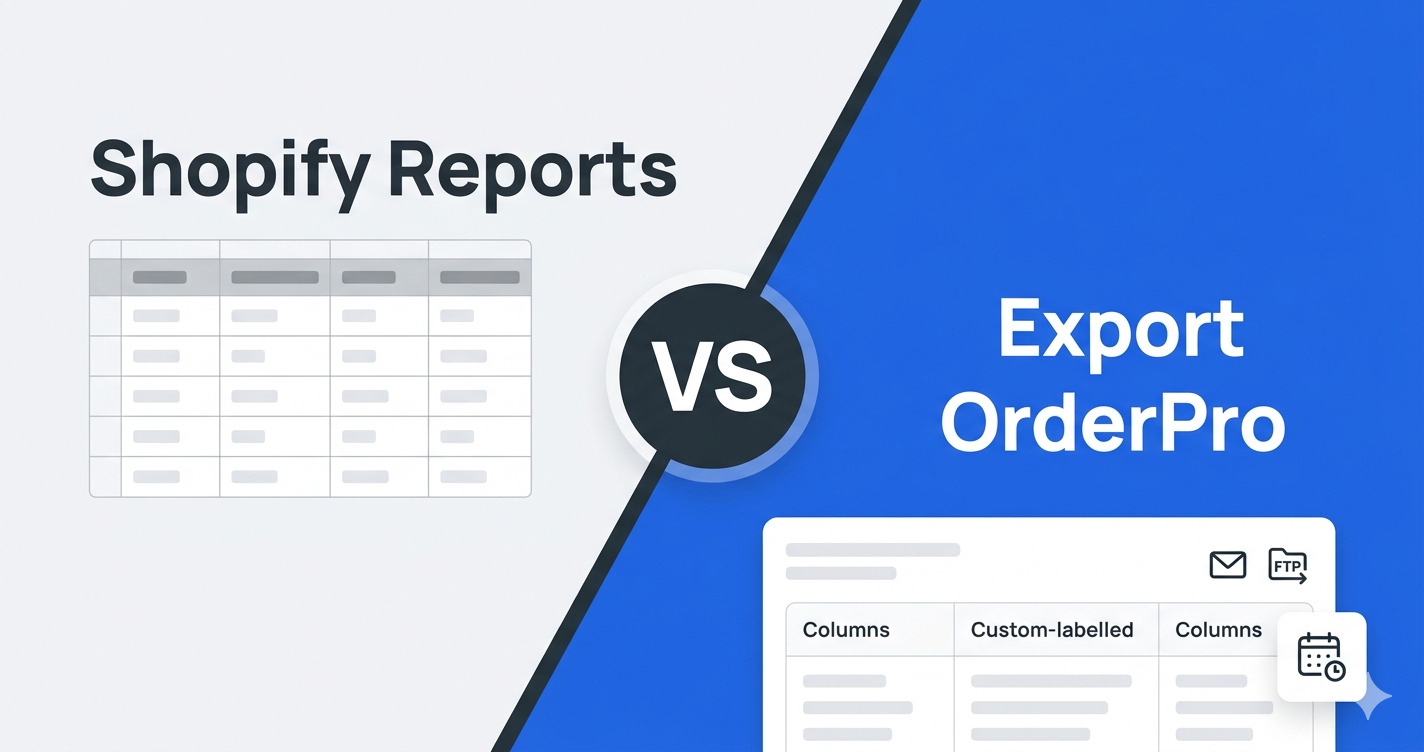
Shopify's built-in order export produces a fixed CSV with a predefined set of columns. It works for occasional lookups, but the moment you need custom column layouts, recurring scheduled delivery, multi-condition filters, or formats other than CSV, you've reached its ceiling. Export OrderPro is built specifically to fill that gap, without leaving Shopify Admin.
What Shopify's built-in order export gives you
Shopify's built-in order export downloads a fixed CSV directly from the Orders page in Admin — no configuration required, no extra app, and adequate for stores with occasional, informal export needs. Apply a status or date filter, click Export, and the file downloads to your browser within seconds.
What the default Shopify CSV contains
Shopify's order export includes order number, contact email, billing and shipping address, each line item on its own row, financial status, fulfillment status, discount codes, shipping method, and a handful of other standard fields. The column set is defined by Shopify — you cannot add, remove, rename, or reorder columns. Every export always contains every column, whether your workflow uses those fields or not.
Custom metafields, order attributes, and any data stored outside Shopify's standard order schema are not included. If your fulfilment, accounting, or customer service workflows rely on those fields, the built-in export will always require manual post-processing before the file is usable.
Filtering options before you export
From the Orders page you can narrow the export by date range, financial status (paid, pending, refunded, partially refunded), and fulfillment status (fulfilled, unfulfilled, partially fulfilled). Saved views provide a shortcut, but each view is still a single-condition filter on a fixed field set. Combining criteria — for example, "unfulfilled orders tagged wholesale placed in the last 14 days" — is not possible without exporting everything and filtering the spreadsheet yourself.
Where the built-in export falls short as your store grows
The built-in export becomes a bottleneck as soon as reporting is recurring rather than occasional: fixed columns require manual post-processing on every export, there is no scheduling, and the file always downloads to your own browser — it cannot be emailed, uploaded to a server, or pushed to a webhook automatically.
The gaps merchants hit most often:
- No column customisation — the warehouse team wants seven fields; the export gives them forty-three.
- No header renaming — "Lineitem name" stays "Lineitem name" regardless of what the import template your 3PL or accountant expects.
- No scheduling — someone must be present to trigger the export every Monday morning, every month-end, every time a partner asks.
- No delivery options — the file always downloads to the browser. Emailing it, uploading it to an FTP, or pushing it to a webhook requires a manual step every time.
- One format only — CSV. No Excel for formatted reports, no XML for system integrations, no HTML for browser-viewable summaries.
- No saved filters — every session you rebuild the same criteria from scratch.
These are non-issues when exporting is rare and informal. They become real operational costs the moment exporting is a regular, recurring part of running the business.
What Export OrderPro adds
Export OrderPro adds five capabilities that Shopify's built-in export lacks: custom column layouts, saved multi-condition filters, scheduled automated delivery, four destination options (email, FTP, webhook, public URL), and four file formats (CSV, Excel, XML, HTML). It runs entirely inside Shopify Admin with no separate login and no external dashboard. A default report design is ready to use immediately after installation.
Custom report designs
A report design is a saved column layout. You choose which fields to include, rename each header to whatever your downstream system or recipient expects, and set the column order. Once saved, the design is available in any manual export, live preview, or automation with a single selection. Maintain as many designs as you need — one for the warehouse, one for the accountant, one for the marketing team — each exporting exactly the right shape of data for its audience.
Smart saved filters
A filter is a saved set of conditions that controls which orders appear in the export. Filters support multiple combined criteria: financial status, fulfillment status, order tags, delivery method, line item SKU, and more. Saved filters are reusable across manual exports, live previews, and automations. If a report design or filter is referenced by an automation, the app prevents deletion until that automation is removed or reassigned — nothing silently breaks at the next scheduled run.
Scheduled automations with missed-run catch-up
An automation ties together a report design, a filter, a schedule, and a delivery destination. It runs on Export OrderPro's server on the configured interval — daily, weekly, monthly, or a custom cadence — regardless of whether you are logged in to Shopify. If an automation is paused or suspended and then re-enabled, it catches up on every missed date window in sequence. The exception: if you edit the automation before re-enabling it, the date window resets from that point and missed periods are not back-filled. Re-enable first, let catch-up complete, then make changes.
Four delivery destinations
Where the built-in export delivers to one place — your browser — Export OrderPro supports four destinations per automation:
- Email — send the file as an attachment or a download link to any address, with a custom subject line and message body.
- FTP — upload directly to a server path, feeding back-office systems, ERPs, or shared file servers without any manual step.
- Webhook — call any URL on each run, connecting to Make, IFTTT, Zapier, or your own API for further processing.
- Public URL — a stable link that always serves the file from the most recent run, shareable with a team or embeddable in a dashboard.
Multiple file formats
Each export — manual or automated — can produce CSV, Excel (.xlsx), XML, or HTML. The format is set per-automation, so your warehouse integration can receive XML while your accountant gets a formatted Excel workbook from the same order data on the same schedule.
Side-by-side comparison
| Feature | Shopify built-in | Export OrderPro |
|---|---|---|
| Column selection | Fixed by Shopify | Fully custom |
| Column renaming | No | Yes |
| Filter complexity | Status & date only | Multi-condition, saved |
| Scheduling | Manual only | Daily / weekly / monthly / custom |
| Delivery destination | Browser download | Email, FTP, Webhook, Public URL |
| File formats | CSV only | CSV, Excel, XML, HTML |
| Live order preview | No | Yes |
| Missed-run catch-up | N/A | Yes (when not edited) |
| Ready on install | Yes | Yes |
When Shopify's built-in export is the right choice
The built-in tool is perfectly adequate when exporting is infrequent and informal. If you pull order data a few times a month, share the raw CSV internally, and have no recurring delivery requirement, there is no meaningful benefit to adding another app. The built-in export is also the only option for non-order resources: products, customers, inventory, and gift cards all export through Shopify's native workflow. Export OrderPro focuses exclusively on order data.
When you need Export OrderPro
You need Export OrderPro the moment column customisation, scheduling, non-browser delivery, or multi-condition filtering matters — the scenarios below are the most common transition points, and once you hit any of them, the manual workarounds compound quickly:
- A team member runs the same export on a fixed schedule every week or month.
- A partner — warehouse, 3PL, accountant, agency — asks you to rename columns or strip out the fields they don't use.
- You need to deliver the file somewhere other than your own browser: email, SFTP, a webhook, or a shared link.
- The recipient needs Excel or another format rather than CSV.
- You want to filter by criteria Shopify's export page doesn't support — SKU, tag, delivery method, custom attribute.
- You want to preview which orders will be in the export before generating the file.
- You need a permanent link to the latest version of a recurring report for a dashboard or integration.
Frequently asked questions
Does Export OrderPro replace Shopify's order export entirely?
For order data, yes — Export OrderPro covers everything the built-in export does and considerably more. For other resource types such as products, customers, and inventory, Shopify's native export remains the tool to use. Export OrderPro is focused exclusively on order-level reporting.
Is the underlying order data the same in both tools?
Yes. Both read directly from your Shopify store, so the numbers, dates, and order details are identical. The difference is which fields appear in the output, how they are labelled, what format the file takes, and how and when it is delivered.
Does Export OrderPro require a separate login outside Shopify Admin?
No. It is a fully embedded Shopify app. You open it from your app list inside Admin and everything — report designs, filters, automations, history — is managed within the same Shopify session. There are no external credentials to manage.
Can I use both tools at the same time?
Yes, they operate independently. You can continue using Shopify's built-in export for quick one-off lookups while Export OrderPro automations run in the background handling recurring operational reports. There is no conflict between the two.
What happens if a scheduled run fires when there are no matching orders?
By default the run is skipped and recorded in History as "No orders matched — empty report skipped." If your workflow requires delivery even when there are no orders — for confirmation purposes — enable the "Export report even if it has no orders" setting on that automation.
How long are generated report files kept?
Export OrderPro retains generated files for a number of days after each run so you can download or re-download them from the History tab without re-running the export. After the retention period the files are removed. Your raw order data is never persistently stored.
Next steps
Ready to move beyond Shopify's fixed CSV? See Getting Started with Export OrderPro for a step-by-step walkthrough of creating your first custom report design and filter.